
Of all the apps in Microsoft 365, OneNote is the one we’d struggle to live without. It’s also one of the most underused. As we mentioned in our Welcome to Microsoft 365 overview, mastering OneNote will serve you well — this post is a hands-on look at how.
What OneNote is:
OneNote is a digital notebook. Like a physical notebook, it’s divided into sections (the coloured tabs) and pages (the items inside each tab). Unlike a physical notebook:
- It’s searchable — every word, including text in images.
- It’s everywhere — PC, Mac, iPhone, iPad, Android, the web.
- It auto-saves continuously. You’ll never lose a note.
- You can paste in pictures, links, files, audio, even hand-drawn sketches.
Where OneNote sits in Microsoft 365
OneNote has two main “homes”:
- Personal notebooks live in your OneDrive. These are your “me” notebooks — meeting notes, ideas, planning.
- Shared notebooks live inside a Microsoft Team or a SharePoint site. These are “we” notebooks — team playbooks, client notes, project knowledge.
It’s perfectly normal to start a notebook as personal and later move (or copy) sections into a shared notebook once the content becomes useful to the team.
A starter structure that works
If you’re staring at an empty notebook, here’s a structure we’ve seen work for owners, managers, and consultants:
- Daily — one page per day, dated. Capture meeting notes, calls, to-dos, thoughts.
- Clients / Customers — one section per client; one page per project or visit.
- Internal — sections for HR, Finance, Marketing, Operations as needed.
- Reference — anything you want to find again: how-tos, passwords (only in a secure notebook), templates.
- Ideas / Someday — the dumping ground for things you don’t want to lose.
Don’t try to design the perfect notebook on day one. Just start writing and rearrange as the shape becomes obvious.
The features worth learning early
Tags and search
OneNote has built-in tags like To Do, Important, Question, and Idea. Apply them with one click and then use Find Tags to roll them up into a single view across every notebook. Combined with search, you’ll find anything you’ve ever written down.
Meeting notes from Outlook
From within a OneNote page, you can insert Meeting Details from Outlook — date, attendees, subject, and any agenda are stamped in. Five seconds of effort saves five minutes of typing.
To-do checkboxes
Use the To Do tag (Ctrl+1) to turn any line into a tickable checkbox. Great for action items from a meeting that you’ll tick off as you go.
Inking and drawing
On a touch device, you can sketch, annotate, and even handwrite. OneNote’s handwriting recognition is excellent — handwritten notes still show up in searches.
Linked notes
Right-click any heading or paragraph and copy a link to the spot. You can paste that link into emails, To Do items, or Planner tasks to take a colleague straight to the relevant note.
Explore Sections & Section Groups
From within a One
Try Inserting Files and Links
Try:
- pasting or dragging in a PDF
- inserting a spreadsheet (these can be set to update when the source sheet is saved)
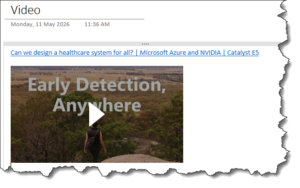
- pasting in a link to a relevant YouTube video
Good habits
- One notebook per purpose, not per topic. A handful of well-structured notebooks beats a sprawl of single-topic ones.
- Use dated pages for daily notes. Future-you will thank you when reconstructing what happened.
- Don’t store passwords in OneNote — use a password manager. OneNote section passwords exist but they aren’t a substitute for a proper vault.
- Move team-relevant content into a shared notebook rather than emailing screenshots of your personal notes.
What’s next
With OneDrive and OneNote in place, you’ve got your personal workspace under control. The next post moves into the apps you already know well — but probably aren’t using to their full potential — starting with Word.
To explore any of the posts in this series just give us a call and see how we can help.