


Simple tips to make Edge work for you
For many people, a web browser is simply the tool they use to get to websites. But Microsoft Edge can be much more than that.
When configured properly, Edge can become the central hub for your daily work, helping you access Microsoft 365 faster, stay organised, and work more efficiently across all your devices.
Whether you’re new to Microsoft Edge or you’ve been using it for years and want to better understand its capabilities, this guide will help you get the most from Microsoft’s modern browser.
From IE to Edge
Microsoft Edge began life as Microsoft’s successor to the ageing Internet Explorer browser. In its early years, Edge struggled to win over users, with many finding it lacked the features, compatibility and performance offered by more established alternatives. As a result, it earned a reputation that was difficult to shake, even as Microsoft continued to invest heavily in its development. 
Today, however, Edge is a completely different product. Built on a modern browser engine and updated regularly, it has evolved into a fast, secure and feature-rich browser that competes comfortably with the best on the market. Microsoft has focused on improving performance, enhancing security, reducing resource usage and adding productivity tools that help users get more done throughout the day.
Many people who give Edge another chance are surprised by how polished and capable it has become. Features such as vertical tabs, sleeping tabs, built-in PDF editing, web app creation, AI-powered Copilot integration and tight integration with Microsoft 365 make it particularly appealing for both business and personal use. In fact, one of the most common pieces of feedback we hear from users is that they wish they had tried it again sooner.
While Edge may have had a challenging start, it has matured into a modern, reliable browser that deserves a fresh look from anyone who hasn’t explored it in recent years.
Sign into Edge with Your Work Account
One of the biggest advantages of Edge is the ability to sign in using your Microsoft 365 work account.

Once signed in, Edge can synchronise your:
- Favourites (bookmarks)
- Saved passwords
- Browsing history
- Settings
- Extensions
- Open tabs (optional)
This means if you replace your computer, move to a new device, or use Edge on your laptop, desktop and mobile phone, your browsing experience follows you wherever you go.
For business users, this can save hours of setup time and ensures important business favourites and settings are always available.
To enable sync:
- Open Microsoft Edge.
- Click your profile picture in the top-right corner.
- Sign in with your Microsoft 365 work account.
- Select Turn on Sync.
- Choose what information you’d like synchronised.
Edge Runs Chrome Extensions & Chrome Themes
A common misconception is that Google Chrome is required to use Chrome’s extensions and themes.
Because Microsoft Edge is built on the same Chromium platform as Chrome, it can run most Chrome Browser Extensions and Themes.

This gives you access to thousands of useful tools including:
- Password managers
- Productivity tools
- Ad blockers
- Web development tools
- Microsoft 365 enhancements
To install Chrome extensions:
- Visit the Chrome Web Store

- Enable Allow extensions from other stores if prompted.
- Install extensions as normal.
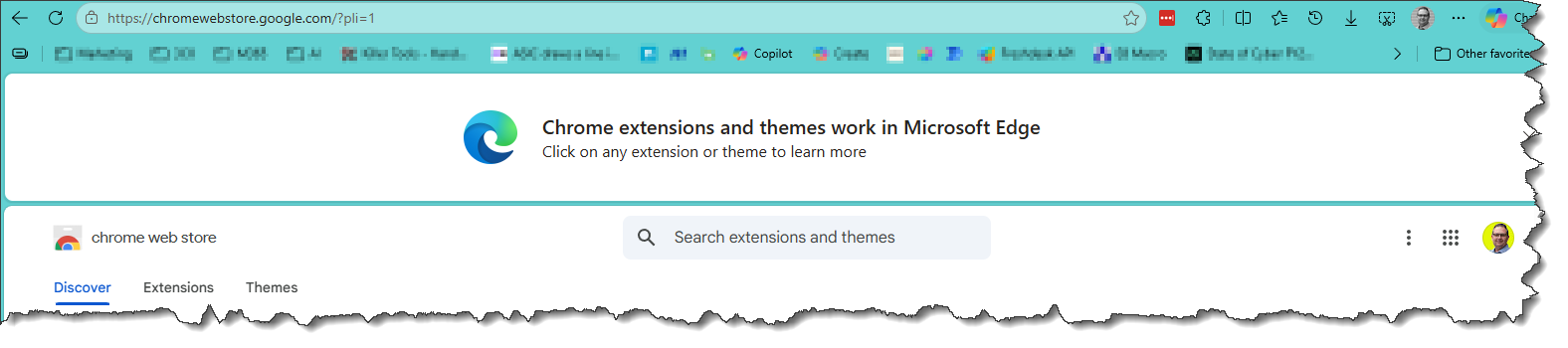
You get the same extension ecosystem while benefiting from Edge’s Microsoft 365 integration.
Favourite Bar Tips – Icon only and Folders
If your favourites bar starts becoming crowded, there’s a simple trick:
- Right-click a favourite.
- Select Show icon only.
The website name disappears, leaving only the site’s icon allowing you to fit significantly more favourites across the bar while keeping everything easily accessible.
You can also create folders on the Favourites bar, allowing you to group related websites together.
This is particularly useful for business users who regularly access customer portals, Microsoft 365 services, banking websites or supplier systems, helping keep the Favourites bar organised while making important sites easier to find.
Common Edge Settings
These are some of the first settings we typically configure for business users.
Always Show the Favourites Bar
Keeping the favourites bar visible makes it much easier to access frequently used business websites.
To enable:
- Open Edge.
- Click the three dots (Settings and More).
- Select Settings.
- Select Appearance.
- Under Customise toolbar, set Show favourites bar to Always.
Display Downloads and History Icons
Having quick access to downloads and browsing history can save several clicks every day.
To enable:
- Open Settings.
- Select Appearance.
- Under Customise toolbar, enable:
- Downloads
- History
The icons will appear directly on your toolbar.
Pin Useful Microsoft 365 Sites to the Favourites Bar
We recommend creating favourites for the services most users access daily:
- Microsoft 365 Portal (https://office.com)
- https://outlook.office.com/mail/
- https://onedrive.com
- https://office.comhttps://teams.microsoft.com
- Your SharePoint intranet or team site
To add a favourite:
- Open the website.
- Click the star icon in the address bar.
- Choose Favourites Bar (or folder)
- Save.
For extra space, use Show icon only on these favourites.
Open Your Favourite Sites Automatically Every Morning
Many people start their day by opening the same websites.
Edge can do this automatically.
Consider opening:
- Office.com
- Outlook
- Teams
- SharePoint
- CRM systems
- Helpdesk portals
- Business applications
To configure:
- Open all the sites you’d like to launch automatically.
- Open Settings.
- Select Start, Home and New Tabs.
- Under When Edge starts, choose:
- Open these pages
- Select Use all open tabs.
Now every time Edge launches, your workspace is ready to go.
But I’m on a Mac ?
We hear this all the time and yes Microsoft 365 works well in most modern browsers, including Safari and Chrome we content that you’ll generally have a better experience using Microsoft Edge for your Microsoft 365 work and for most other sites. We have found it to be noticable faster and from an enterprise angle Edge is easier to manage.
Edge built on the open source, based on the Chromium project and then enhanced/developed by Microsoft. This means Edge is usually the first browser to receive support for new Microsoft 365 features and enhancements.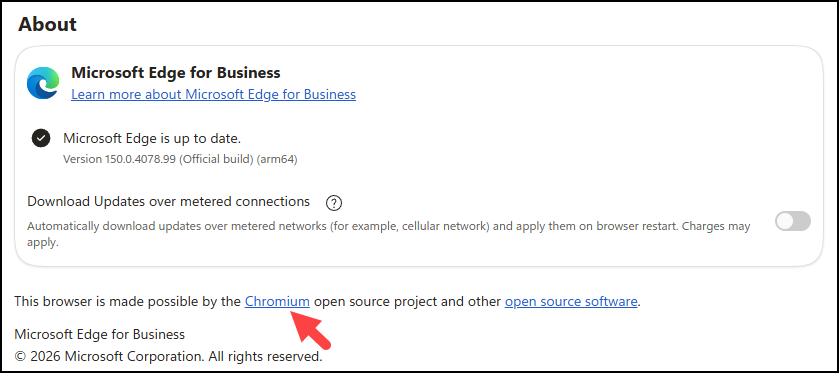
This often means applications such as Outlook, Teams, Word, Excel, OneDrive and SharePoint work more consistently and provide access to new capabilities sooner.
Edge benefits include:
- Better compatibility with Microsoft 365 web apps and services.
- Improved support for Teams meetings, calling and screen sharing.
- Smoother integration with OneDrive and SharePoint document libraries.
- More reliable support for Copilot and AI-powered Microsoft 365 features.
- Fewer authentication and sign-in issues.
- Better performance when working across multiple Microsoft 365 applications.
If you enjoy Safari, there’s no need to stop using it for general web browsing. However, for daily Microsoft 365 work, Edge will typically provide the most reliable and fully featured experience.
Think of it like using a manufacturer’s recommended browser: Microsoft builds and tests Microsoft 365 primarily against Edge, so you’re more likely to experience the platform exactly as intended.
We recommnend giving Edge a try for yourself.
Discovering Microsoft Edge Features
Edge on Mobile Devices
Why Use Edge on Mobile?
The Edge mobile app is available for both iPhone and Android devices.
When signed in with the same Edge profile used on your computer, it can synchronise:
- Favourites
- Saved passwords
- Collections
- Open tabs
- Browsing history
This creates a seamless experience between your computer and mobile device.
You can start reading something on your desktop and continue where you left off on your phone.
Edge Apps – install Websites as Apps
Many websites behave much like traditional applications when you use Edge to install them as standalone apps.
Benefits
- Each Edge App opens in its own window
- Edge Apps have a cleaner interface
- Edge Apps are easily pinned to the task bar
- Edge Apps feel like a dedicated application
- Excellent for Outlook, Teams and business portals
- You can autostart Edge Apps just like any other app
- Edge Apps they start in their own windoe
How to Install
- Browse to the website.
- Click the three dots.
- Select More tools –> Apps then choose Install this site as an app.
- Give it a name.
- Click Install.
Popular choices include Outlook, Teams, SharePoint and CRM systems.
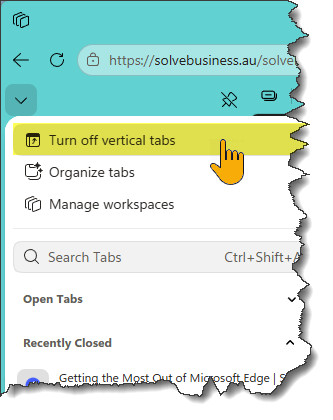
Vertical Tabs for Power Users
Instead of displaying tabs across the top, Edge can display them down the left-hand side.
If you regularly have dozens of tabs open, vertical tabs make them easier to manage and identify.
Enabling Vertical Tabs
- Click the Turn on Vertical Tabs icon on the tab bar.

- Alternatively:
- Open Settings.
- Search for “Vertical Tabs”.
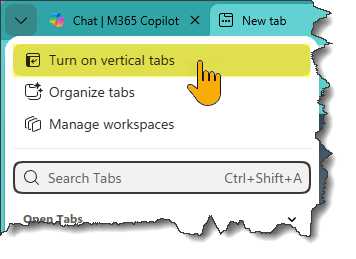
Disabling Vertical Tabs is easy, just click the Vertical Tabs button again and choose to switch back.
Edge Workspaces
Edge Workspaces allow you to group related tabs together.
For example:
- Finance Workspace
- Marketing Workspace
- Client Workspace
- Personal Workspace
Edge Workspaces help reduce clutter and make it easier to focus on specific projects.
First Enable Workspaces in Settings
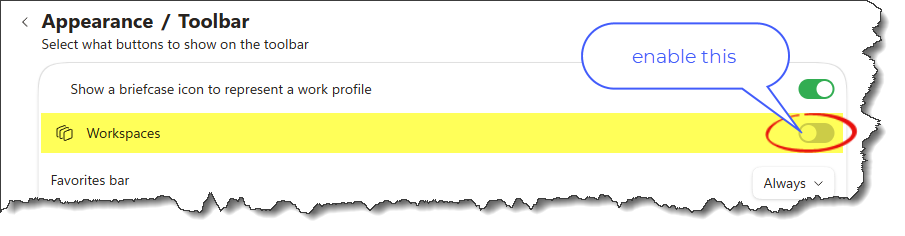
Now you can work with Workspaces 😊
Create a Workspace
- Click the Workspaces icon.
- Select Create New Workspace.

- Give it a name and colour.
- Add relevant tabs.
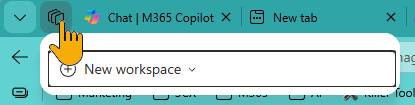
Use the Workspaces menu to edit, leave or delete workspaces.
Split Screen Browsing
Split Screen allows you to view two websites side-by-side within the same browser window.

Split Screen browsing is useful for:
- Comparing documents
- Working between SharePoint and Outlook
- Researching while writing content
- Comparing spreadsheets
To enable Split Screen Browsing: Click the Split Screen icon on the toolbar and choose a tab for each side.
To disable Split Screen Browsing: Close the split view or click the Split Screen icon again.
Built-In Screenshot Tool
Edge includes a built-in screenshot tool that removes the need for many third-party capture utilities.
- Click the three dots.
- Select Screenshot.
- Choose:
- Capture area
- Capture full page
You can then annotate, copy or save the image.
Read Aloud

Read Aloud converts web pages into spoken audio. This is great for:
- Reviewing lengthy articles
- Improving accessibility
- Multitasking while listening
To use Read Aloud:
- Open a webpage.
- Right-click the page.
- Select More tools –> choose Read Aloud.
You can adjust speed and voice options.
PDF Editing Without Adobe
Edge includes built-in PDF functionality allowing you to:
- Open PDFs
- Highlight text
- Add notes
- Draw annotations
- Fill forms
- Sign PDFs
For advanced features such as:
- Complex editing
- Rearranging pages
- OCR conversion
- Document creation workflows
You may still require Adobe Acrobat or another specialised PDF tool.
For everyday business usage, Edge’s PDF features are often sufficient.
Sleeping Tabs
Sleeping Tabs is Edge’s built-in performance optimiser. It automatically pauses tabs you’re not using, freeing up memory and processor resources without closing them. The result is a faster computer, improved battery life, better multitasking and the ability to keep dozens of tabs open without slowing down your device. For Microsoft 365 users who live in the browser all day, it’s one of Edge’s most valuable hidden features.
Using Sleeping Tabs:
- Lowers Edge’s memory consumption
- Improves battery life
- Improves your browser performance
Managing Sleeping Tabs:
- Open Settings.
- Select System and Performance, choose Performance
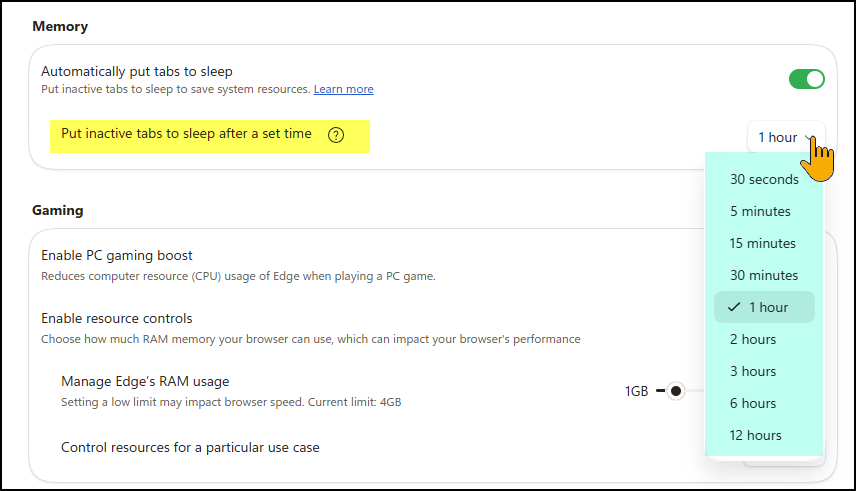
- Configure Sleeping Tabs settings. Default is 1 hour but you can adjust this to suit your work habits.

Edge – Capping Memory Use
Users don’t normally need to worry about memory use by Edge but when there are lots of browsers open and some have multiple tabs it can add up so it’s not uncommon to see Edge tying up 6GB of RAM especially on systems with plenty of RAM. Don’t be alarmed, it’s very manageable should you need to control memory use and setting a reasonable cap on Edge memory means more memory for your other apps.
Here’s where you manage Edge Memory Use:
- Open Settings.
- Select System and Performance, choose Gaming
- Manage Edge’s RAM usage with the slider as shown.
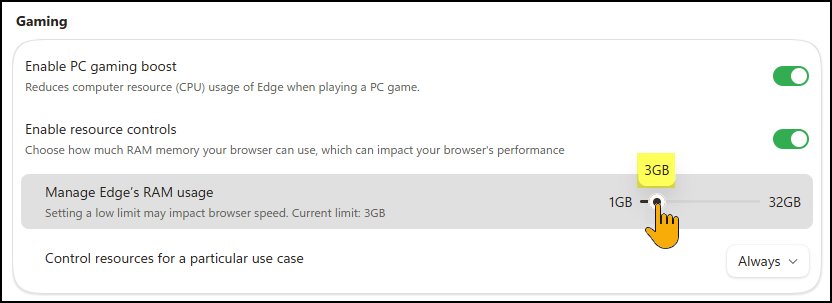
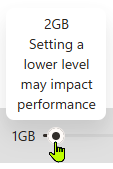
Note: If you choose a cap that’s too low you may impact Edge performance and limit quality on things like media steaming (eg YouTube) to if you do this then find the setting that works for you.
Use Profiles to Separate and Personal browsing
Profiles allow you to separate your work browsing from your personal browsing which means a work profile and a personal profile are effectively treated as separate browser environments. Each profile can has its own:
- Favourites
- Passwords
- Extensions
- Settings including:
- cache
- cookies
- saved passwords
- site permissions
- autofill data
- history
- Open and startup tabs
This helps keep business and personal data separate while using the same computer but each profile uses disk space to keep all this separate.
To create a new profile:
- Click your profile picture.
- Select Add Profile.
- Sign in with the appropriate Microsoft account.
Select the desired profile from the profile menu whenever required.
Copilot in Edge
Copilot is Microsoft’s AI assistant built directly into Edge.
Copilot can help you:
- Summarise lengthy articles
- Draft emails
- Explain technical concepts
- Compare information
- Brainstorm ideas
- Generate content
- Analyse documents and webpages
Rather than switching between multiple applications, Copilot can work alongside you as you browse.
For organisations using Microsoft 365 Copilot, Edge provides one of the most integrated and productive AI experiences available today.
Final Thoughts
Microsoft Edge has evolved far beyond being “just another browser”. When paired with Microsoft 365, it becomes a powerful productivity platform that can help you work faster, stay organised and simplify your day.
Whether you start by enabling synchronisation, turning on the favourites bar, creating an Outlook web app or exploring advanced features such as Workspaces and Vertical Tabs, investing a little time in learning Edge can deliver productivity benefits every single day.
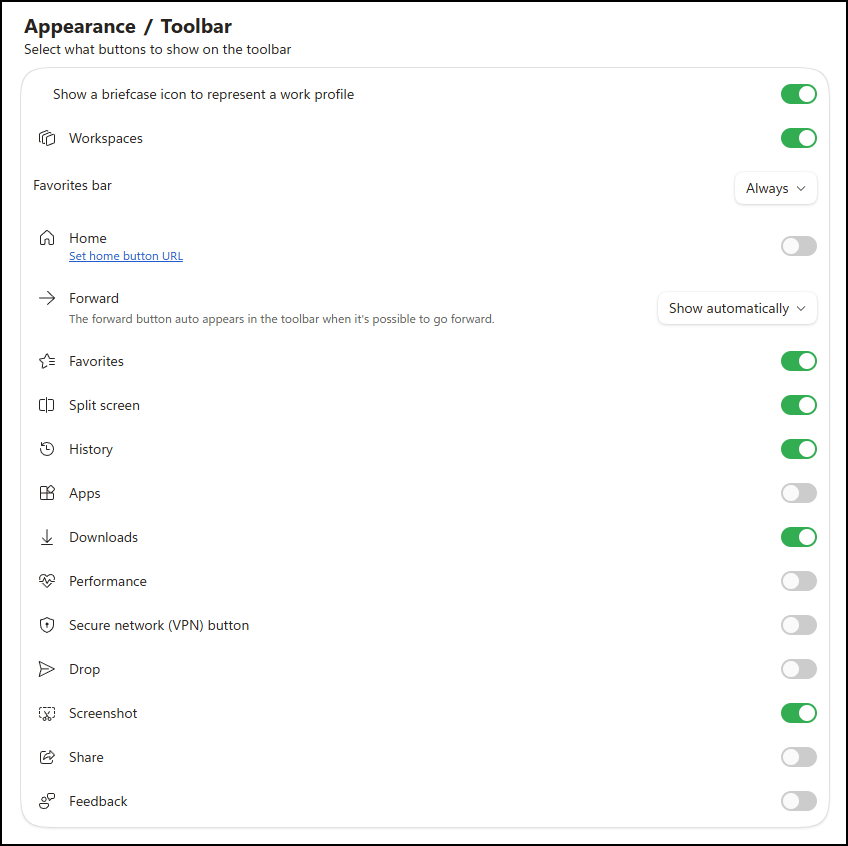
Here’s my current recommended Edge Toolbar settings to get you going:
If you’ve never taken the time to properly set up Microsoft Edge, today might be the perfect day to start.