

Using OneDrive’s Request Files
Securely Receive Files from Anyone
If you’ve ever asked someone to send you a document, photo, spreadsheet or PDF, you’ve probably experienced the usual challenges. Files get lost in email chains, attachments exceed mailbox limits, or people accidentally share the wrong information.
Microsoft OneDrive includes a feature called Request Files that solves these problems by creating a secure upload link that allows people to send files directly to you.
It’s one of those lesser-known features that can save a surprising amount of time, particularly when collecting files from customers, suppliers, contractors, staff members, or anyone outside your organisation.
What is OneDrive Request Files?
The Request Files feature allows you to create a special upload link connected to a folder in your OneDrive.
You then share that link with the people you want files from.
The person receiving the link can upload files directly into your chosen folder, but they cannot:
- View any files already in the folder
- See files uploaded by other people
- Edit existing files
- Delete files
- Browse the rest of your OneDrive
Microsoft describes this as a file request link where users can upload content without being able to access the folder contents. This makes it ideal when collecting documents from multiple people.
Why Use Request Files?
There are several advantages over traditional email attachments:
Improved Security
Although the feature uses what is technically an“Anyone” sharing link, uploaders can only submit files. Users cannot see what has already been uploaded or access any other content stored in your OneDrive. Users appreciate not being asked to send sensitive files often containing Personally Identifiable Information via insecure tools like email.
Everything Arrives in One Place
Instead of searching through multiple emails and attachments, all files are automatically saved into a single folder.
Handles Large Files
The sender uploads directly into OneDrive, avoiding many email attachment size limitations.
Easier for Recipients
People do not need access to your organisation or your OneDrive folder. In many cases they don’t even need a Microsoft account.
Automatic Notifications
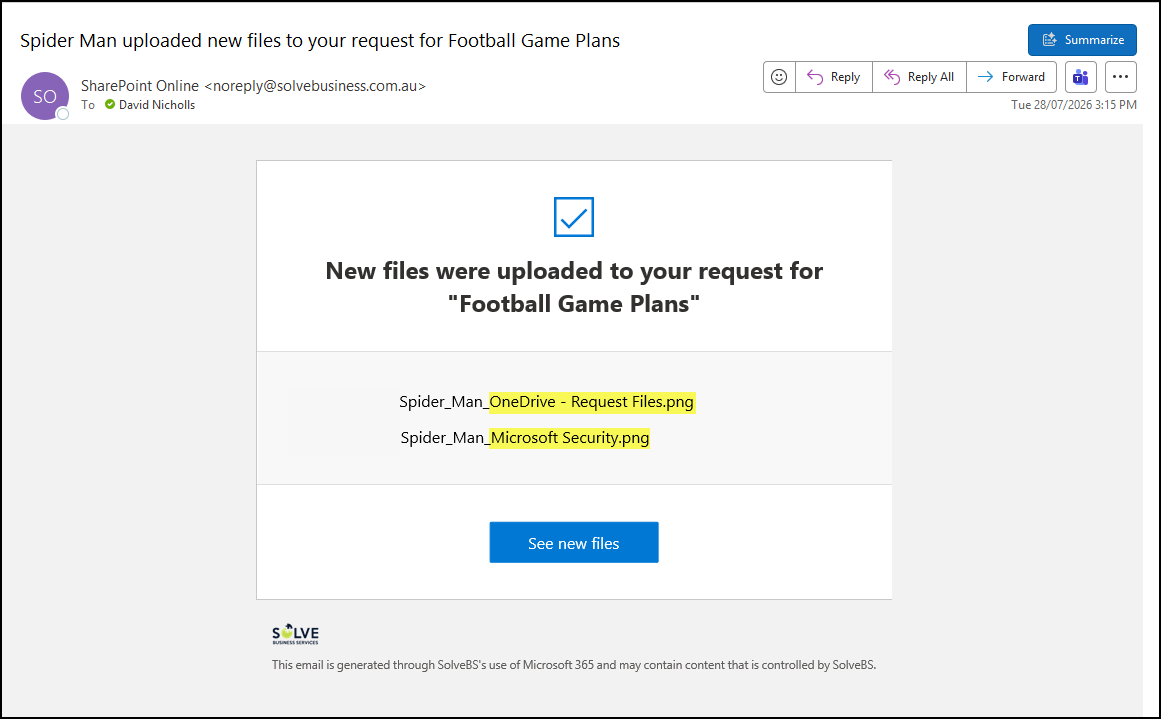
You’ll receive a notification when someone uploads files using your file request link, helping you stay on top of incoming submissions.
Common Use Cases
Request Files is particularly useful when:
- Collecting invoices from suppliers
- Receiving signed contracts from customers
- Gathering photos from staff members
- Requesting supporting documents for applications
- Collecting reports from contractors
- Receiving project deliverables from clients
- Gathering forms from multiple people
How to Create a File Request in OneDrive
Getting started is straightforward.
Step 1 – Open OneDrive
Sign in to Microsoft 365 and open OneDrive in your web browser.
Step 2 – Create or Choose a Folder
Create a new folder or select an existing folder where you want uploaded files to be stored.
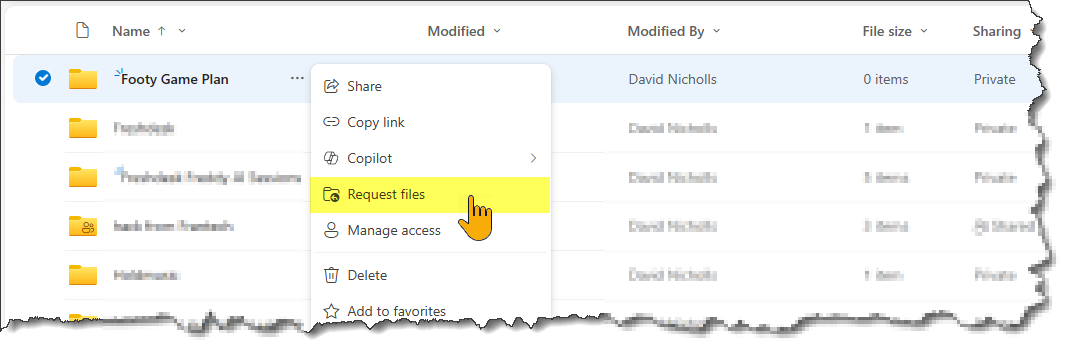
Step 3 – Select Request Files
Highlight the folder and choose Request files from the toolbar as shown below.
If you don’t see the option, check with your Microsoft 365 administrator as some organisations restrict external sharing features.
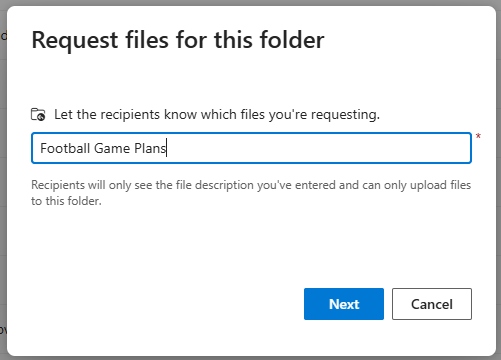
Step 4 – Describe What You’re Requesting
Enter a clear description of the files you want people to upload. In our example we are wanting “Football Game Plans” but you might use “Tender Submissions” or “Special Reports” (whatever describes the purpose of the file request
This description will be displayed to users when they open the upload page.
Step 5 – Create the Link
Next you are presented the link you created with the option to copy the link and reuse it anywhere or you can simply address an email and the system will send it for you.
These reuseable links can be used in your own email or even on a website though check link expiry (explained below):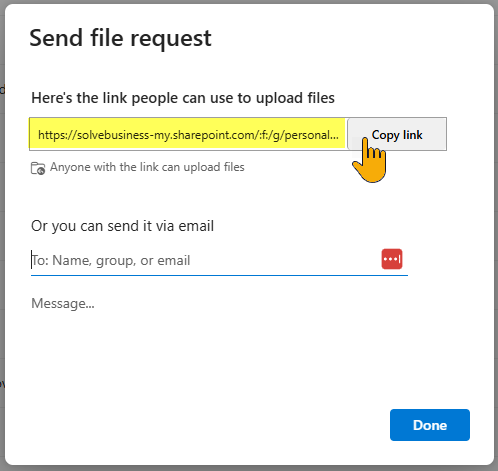
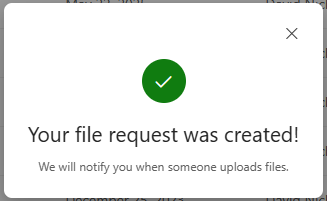
Confirmation your request was created:
What Does the Recipient See?
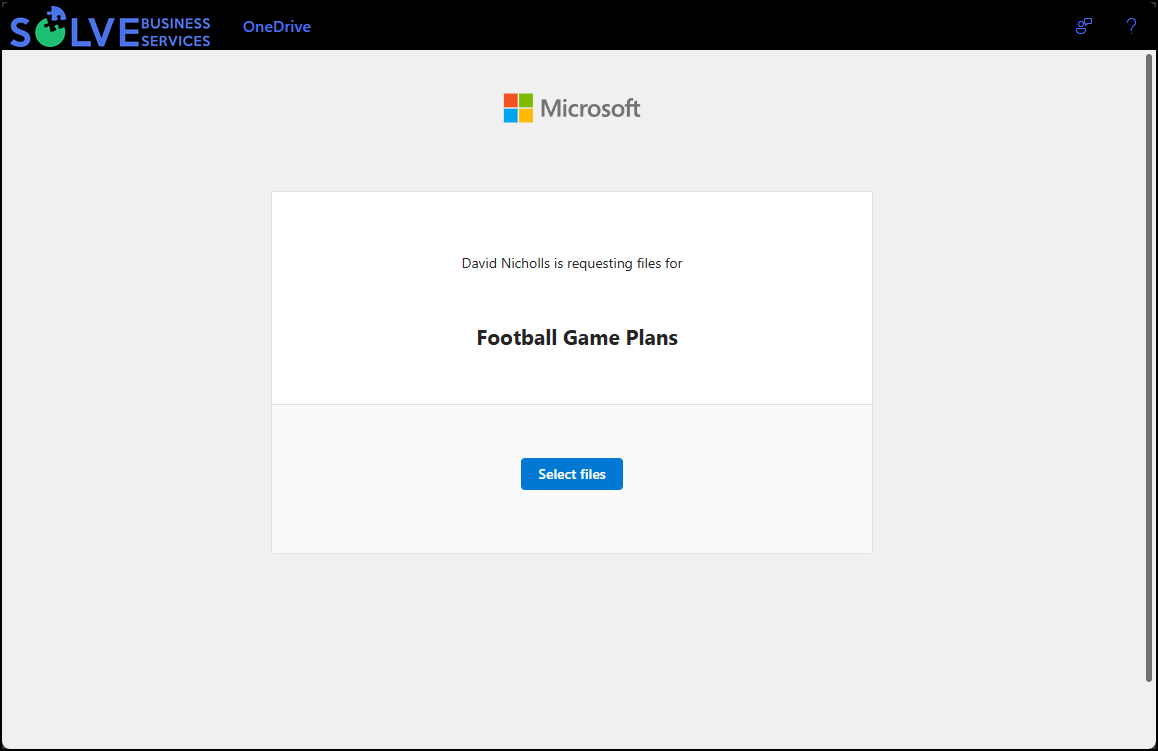
When somebody opens the Request Files link, they’ll see:
- The title of your request – “Football Game Plans”
- The description you entered
- An option to select files for upload
- and your tenant branding
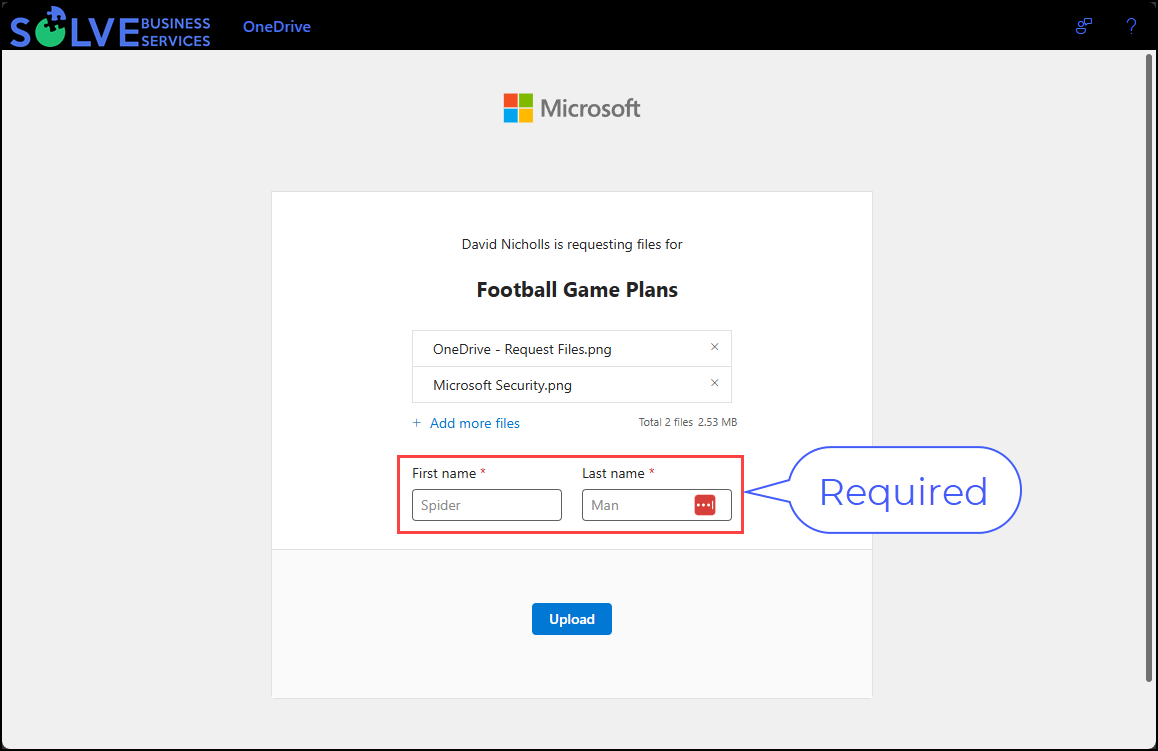
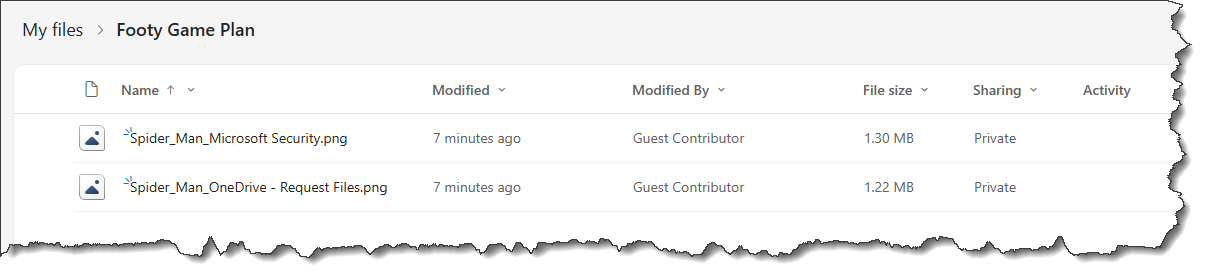
Here the end user has selected 2 files to upload. Notice the user has identified themselves as Spider Man. The first and last names are prepended to the filenames when uploaded so that if multiple users use the same link their files are attributable to the correct user.
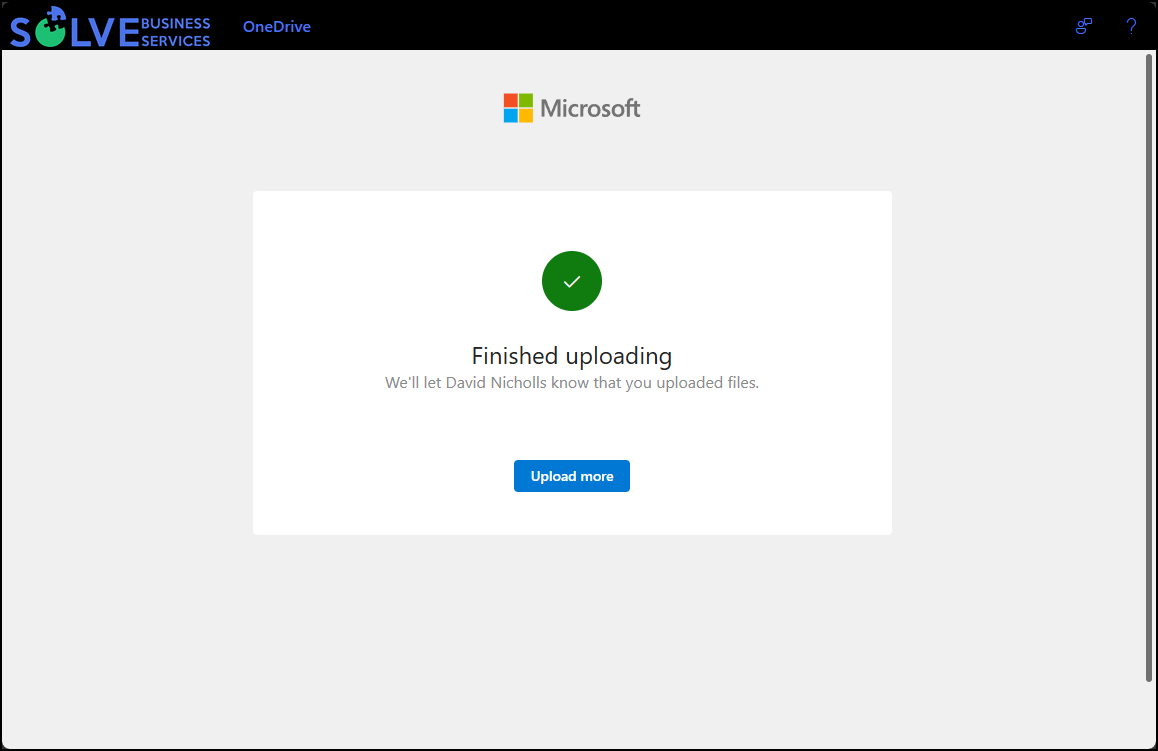
Here’s confirmation that file uploads completed. The user may upload more but won’t see any of the contents of the folder in doing so.
Once file uploads complete the system will notify the owner of the
Looking in our folder we can see the files that were uploaded:
What they won’t see:
- Existing files in the folder
- Other uploads
- Folder contents
- Anything else in your OneDrive
This is what makes the feature so powerful. It provides the convenience of an “Anyone” link while still protecting the contents of the folder.
Important: Check the Expiry Date
Many Microsoft 365 organisations configure Anyone links to automatically expire after a set period.
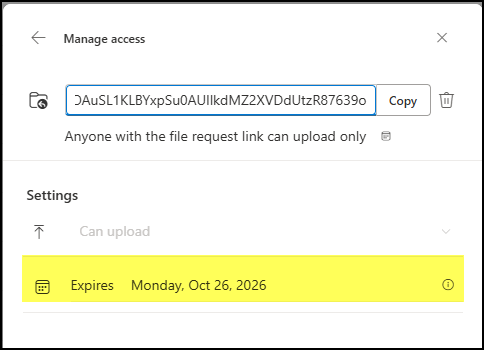
Because Request Files relies on this type of sharing link, it’s worth checking whether your upload link has an expiry date before sending it to customers or external contacts.
If your organisation has strict sharing policies, a link might stop working after a certain number of days.
If you’re unsure, contact your IT administrator or support but you can check the expiry yourself:
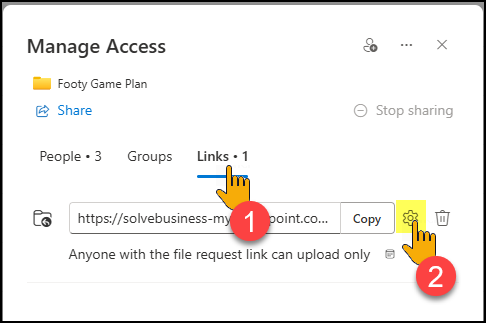
Click the same elipsis next to the folder name in OneDrive and choose Manage Access to be shown details about the access or sharing properties.
Once in “Manage Access” click Links and then the settings cog
In the link settings you will see the expiry date for the link:
You’ll Be Notified When Files Arrive
One of the best parts of Request Files is that OneDrive sends notifications when files are uploaded. This means you don’t need to constantly check the folder to see whether somebody has responded.
All uploaded files appear automatically in the folder you selected when creating the request.
Best Practice Tips
To get the most from Request Files:
- Create a dedicated folder for each request.
- Use clear folder names and descriptions.
- Periodically review active request links.
- Check expiry settings before distributing links externally.
- Delete or disable file request links when they’re no longer needed.
- Keep uploaded files organised with subfolders where appropriate.
Learn More
For Microsoft’s official instructions and latest guidance, you can refer: Create a file request in OneDrive
Final Thoughts
OneDrive’s Request Files feature is an excellent way to securely receive documents, photos and other files from people both inside and outside your organisation.
It removes the need for large email attachments, keeps everything organised in one place, and provides a secure upload experience where contributors can submit files without gaining access to your stored data.
If you’re new to Microsoft 365, this is one of those handy features that is well worth adding to your productivity toolkit.