
Weekly Restarts for Your PC
Keep your PC fresh, improve your experience
If you’ve ever contacted IT support about a computer problem, there’s a good chance the first question you’ve been asked is:
“Have you restarted your computer?”
While it might sound like a cliché, there’s a good reason IT professionals ask this question so often. Restarting your computer is one of the quickest, easiest and most effective ways to resolve common technology issues.
The best part? It usually takes only a few minutes and costs nothing.
In fact, we’d encourage everyone to get into the habit of restarting their computer at least once a week.

Restart vs Shutdown: They’re Not the Same Thing
One of the biggest misconceptions we see is that shutting down a computer at the end of the day is the same as restarting it.
On modern versions of Windows, that isn’t always true.
Windows uses a feature called Fast Startup, which helps your computer start more quickly after being turned off. Because of this, choosing Shut down may not fully reset the operating system in the same way that a restart does.
When you choose Restart, Windows performs a complete restart cycle, closing processes, refreshing system components and allowing updates that are waiting for a reboot to install correctly.
This is one reason why you’ll often hear support staff specifically asking you to restart your computer rather than simply turn it off and back on.

Microsoft’s guide to restarting Windows can be found here: Restart (reboot) your PC – Microsoft Support
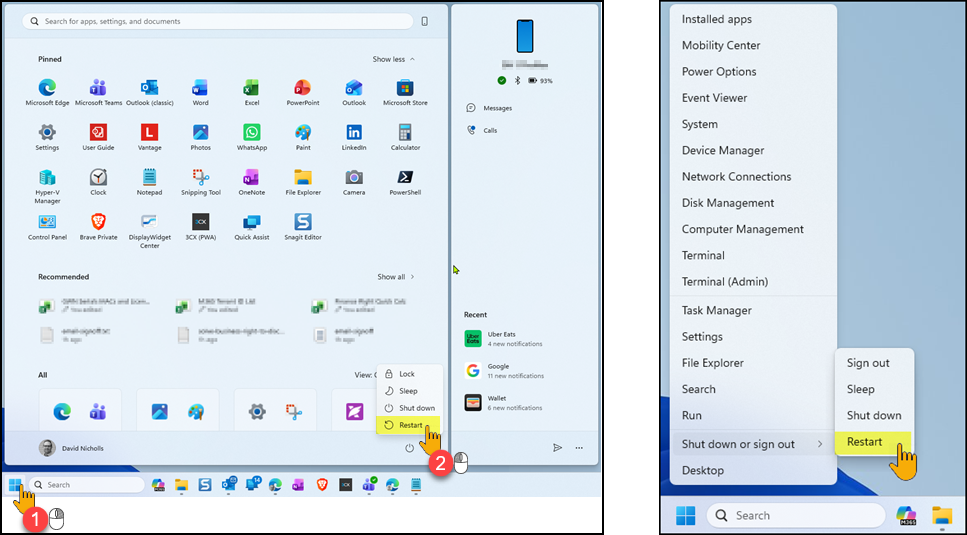
Restarting your PC is easy, just click your start menu or the Windows menu, choose the power button and choose Restart. You can also right click the Windows menu for same effect. Both methods are shown below:
Why Regular Restarts Help
Think of a restart as a mini refresh for your computer.
Over time, applications are opened and closed, background services start and stop, updates get downloaded, and temporary information builds up in memory. While Windows is very good at managing these tasks, even the best operating systems benefit from an occasional clean slate.
Regular restarts can:
- Clear Temporary Memory
Programs use memory (RAM) while they are running.
Over days and weeks of continuous use, memory can become cluttered with information from applications and background processes. Restarting clears this memory and gives Windows a fresh start. - Complete Software Updates
Many Microsoft, security, driver and application updates cannot finish installing until the computer is restarted.
If a restart is postponed for days or weeks, important updates may remain pending and new features or fixes may not become active. - Refresh Background Services
Many business applications rely on services running in the background. Occasionally these services can become stuck, slow or unresponsive.
Restarting restarts these services as well. - Resolve Strange Behaviour and odd issues such as these can often be resolved by a simple restart:
- Printing problems
- Slow performance
- Application crashes
- Network connectivity issues
- Audio and webcam problems
- Missing Outlook features after updates
- Improve Computer Stability
Computers that go weeks without a restart can accumulate minor issues that gradually impact performance. Regular restarts help keep everything running smoothly.
A Real-World Example
We often see examples like this one… Recently, a user contacted support because they could print the day before, but suddenly nothing would print. No settings had changed, no new software had been installed and nothing obvious appeared wrong.
 After checking the computer, we noticed it hadn’t been restarted for more than 50 days.
Rather than spending time troubleshooting printers, drivers and Windows settings, we simply asked the user to restart their PC.
A few minutes later, everything worked perfectly.
While not every issue is solved so easily, it’s surprising how often a restart resolves problems that appear much more serious than they actually are.
What About Mac Computers?
While this article focuses primarily on Windows PCs, the same principles apply to Macs.
Applications, services and operating system components can occasionally become stuck or behave unexpectedly. Restarting a Mac is often a fast and painless first troubleshooting step that can resolve many common issues without further intervention.
Before You Contact Support
The next time something isn’t quite working as expected, please take a moment to restart your computer first.
A proper restart is often enough to sort many routine issues, especially if nothing much has changed and if the issue continues after a restart, then it’s time to reach out to IT support so they can investigate further.
In many cases though, a quick restart can save time, reduce frustration and get you back to work faster.
Our recommendation: Make restarting your computer part of your weekly routine. Your PC.