
Why Your Customers Suddenly Can’t Access Shared SharePoint Folders
Recently we’ve heard comments like:
“It appears that a lot of the clients are not able to access their SharePoint folder we are sharing, even though they appear to have access.”
If that describes your experience with SharePoint External Sharing then you’re not alone and we get the frustration but Microsoft made significant changes to how external sharing works in SharePoint and OneDrive for good reason, to improve security. Security is never fun or pleasant and it often comes with some pain. In this case that pain comes as confusion when external recipients suddenly find themselves unable to access content that previously worked fine. Microsoft is retiring SharePoint’s legacy One-Time Passcode (OTP) sharing model and moving all external sharing to Microsoft Entra B2B guest access.
The good news is that the data is usually still shared correctly. The challenge is often how the recipient is authenticating.
What Changed?
Historically, when you shared a file or folder with a specific external person, Microsoft could simply send them a verification code via email and the recipient would:
- Click the link.
- Receive a code by email.
- Enter the code.
- Access the content.
This worked well because it was simple and did not require the recipient to have a Microsoft account, Microsoft Authenticator, or any special setup.
Microsoft has now moved external sharing to the same identity platform used throughout Microsoft 365: Microsoft Entra B2B Guest Access. This means external users are increasingly being treated as recognised guest identities rather than anonymous email recipients.
Why Did Microsoft Make This Change?
The main driver is security.
The old model proved ownership of an email address, but it did not provide the same level of identity verification and security controls available through Microsoft Entra.
The newer model allows organisations to apply:
- Multi-Factor Authentication (MFA)
- Conditional Access policies
- Sign-in risk detection
- Identity governance
- Guest account lifecycle management
- Audit logging and monitoring
Microsoft’s goal is to have a single identity platform protecting all Microsoft 365 services instead of maintaining separate authentication systems for different applications.
In simple terms: Microsoft wants to know who is accessing the data, not just who owns the email address.
What If the Recipient Doesn’t Have a Microsoft Account?
Minimum Requirements for an Entra ID Guest Account
Prior to July 2026, many external recipients could access SharePoint and OneDrive content simply by entering a one-time passcode emailed to them. With the retirement of SharePoint One-Time Passcode (OTP) authentication, Microsoft now relies on Microsoft Entra ID B2B guest accounts for external collaboration. External users without a guest account may receive an “Access Denied” message until a guest account is created and linked to their email address.
The good news is that most recipients do not need to purchase any Microsoft licence or subscribe to Microsoft 365.
To access shared SharePoint content, the recipient simply needs an identity that Microsoft Entra ID can recognise and authenticate. This can be:
- A Microsoft 365 work or school account
- An existing Microsoft account (such as Outlook.com, Hotmail.com or Live.com)
- An account from another organisation that uses Microsoft Entra ID
How Sharing Works Now
When you share a file, folder or SharePoint site with a specific external person:
- A guest identity may be created in your organisation’s Microsoft Entra directory.
- The recipient signs in using a recognised identity.
- Microsoft evaluates the sign-in against security requirements.
- Access is granted if everything checks out.
Depending on the recipient’s organisation, this may require:
- Microsoft Authenticator
- Another approved MFA method
- SMS verification (where supported but Microsoft are retiring SMS and phone call MFA methods).
- Their organisation’s security requirements
- A Microsoft account
- A work or school account
In some cases, access can be blocked if the recipient’s identity is considered “risky” by Microsoft’s security systems or by their own organisation’s security policies.
Security Policies Also Apply to Guest Users
When you share a SharePoint site, file or folder with an external person, Microsoft 365 treats that person as a Guest User within your organisation. While they are not a staff member, they are still subject to the same security controls that protect your business data.
In practice, this means the recipient may need to meet additional security requirements before they can access what has been shared with them. These may be more stringent than those they normally work with in their own organisation and depending on how your Microsoft 365 environment is configured, this could include:
- Multi-Factor Authentication (MFA)
- Restrictions on which devices can be used
- Limits on which web browsers or applications are allowed
- Geographic location restrictions
One of the most common causes of access issues is a policy that only allows sign-ins from approved countries or regions. For example, an organisation may permit access only from Australia and block sign-ins originating from overseas. If a contractor, client or supplier attempts to access a shared document while travelling or working from another country, access may be denied even if they received the invitation correctly and entered the right account details.
If this happens, the recipient might see a message similar to the one shown below:
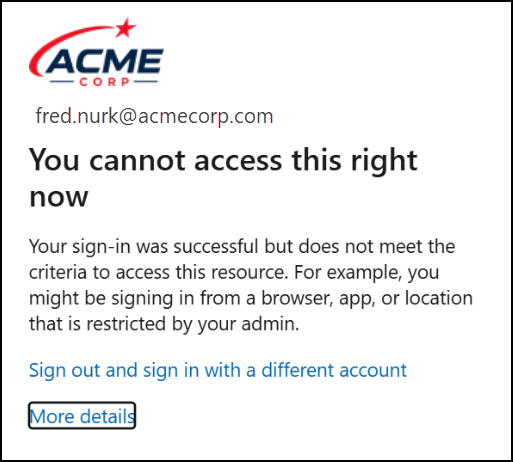
Example of a Conditional Access policy preventing an external guest from accessing a shared SharePoint resource, despite a successful sign-in.
The key point is that this error does NOT necessarily mean something is wrong with the SharePoint invitation itself. In many cases, the user has successfully signed in but has been blocked by a security policy designed to protect your organisation’s data.
If an external recipient receives a message like this, they should contact the business that shared the information and provide:
- Their name
- The email address they used to sign in
- Their current location or country
- A screenshot of any error message displayed
A Microsoft 365 administrator can then review the security policies that apply to the guest account and determine whether an exception is appropriate. In most cases this will require an authorisation from the business to modify a security policy that is in place to control data access or protect the business from other threats.
Tip: If a guest user reports that they can sign in successfully but still cannot access the shared file or site, there is a good chance a security policy is blocking access rather than a problem with the sharing invitation itself.
This is becoming increasingly common as organisations strengthen their Microsoft 365 security posture, so it is worth keeping in mind whenever troubleshooting external sharing issues.
Why “Anyone” Links Are Not Recommended
When sharing files, SharePoint often presents an option called: Anyone with the link
While this may seem like the easy solution, it is generally not suitable for sensitive business information.
An “Anyone” link effectively turns the URL itself into the password. Whoever has the link can access the content. That creates some obvious risks when:
- Emails get forwarded.
- Recipients accidentally share the link.
- Links are copied into chat messages.
- Links are stored in unsecured systems.
- The original sender loses visibility over who is accessing the content.
For example:
- You share a proposal with Client A.
- Client A forwards the email internally to five colleagues.
- One of those people accidentally forwards the email again.
- Everyone who receives the link can now access the content, despite never being the intended recipient.
For this reason, we strongly recommend using Specific People sharing whenever possible and avoiding Anyone links for sensitive, confidential or commercial information.
Our customers have a SharePoint sharing setting on these links that expires them after a number of days. The number of days varies but by default we start at 30 days. Expiring these reduces the amount of “Anyone” links that exist and prevents build up over time.
Troubleshooting for the Person Sharing the Folder
If your recipient cannot access a folder, try the following these troubleshooting steps:
1. Confirm the Email Address
Check that the sharing invitation was sent to exactly the correct email address.
Even a minor difference such as john.smith@company.com vs jsmith@company.com can cause authentication issues.
2. Reshare the Folder
Remove the existing sharing permission and share the folder again.
Microsoft may automatically recreate the guest relationship during the new sharing process.
3. Ensure “Specific People” Was Selected
Review the sharing settings and confirm the folder was shared to the intended recipient and not accidentally restricted to somebody else.
4. Confirm the Recipient Is Using the Same Email Address
The recipient must sign in using the same email address that was shared.
If the invitation was sent to person@company.com they cannot generally access the content while signed in as person@hotmail.com or another identity.
5. Wait a Few Minutes
New guest invitations can occasionally take a little time to replicate through Microsoft’s services, give it 5 or 10 mins.
Troubleshooting for the Recipient
If you receive a SharePoint sharing link but cannot access it:
1. Open the Link in a Private Browser Window
Use InPrivate (Edge) or Incognito (Chrome) as this avoids conflicts with existing signed-in accounts.
2. Sign In With the Correct Email Address
Ensure you are using exactly the email address that received the invitation.
3. Complete MFA if Prompted
Microsoft may require:
- Microsoft Authenticator
- SMS verification (if prompted but being retired in October 2026)
- Another approved authentication method
This is expected behaviour.
4. Try a Different Browser
 Sometimes cached credentials can interfere with the sign-in process. Microsoft Edge generally provides the most reliable experience for Microsoft 365 services.
5. Contact Your IT Team
Your organisation may have policies preventing successful authentication in some circumstances like:
- Conditional Access policies
- MFA requirements
- Sign-in restrictions
- Risk-based access controls
Note: if the link recipient is on Microsoft 365 and has been marked as “risky” within their own tenant then they will most likely be blocked from accessing the content you shared to them via SharePoint.
Your IT team can often identify these issues very quickly.
Still Not Working?
If resharing the folder does not resolve the issue, there is one additional step that has successfully resolved many cases.
If you are a customer of Solve Business Services then please reach out to our Service Desk and provide us the info below. If you are not a customer of Solve Business Services then contact your IT support and discuss with them but they will also need these items to troubleshoot:
- The recipient’s email address
- The recipient’s organisation name
- A description of the issue
- Tell us which folder you are sharing externally (full path please)
We can then:
- Review existing guest accounts.
- Remove duplicate or stale guest entries.
- Create a fresh Microsoft Entra guest account.
You can then ask your recipient to retry their access and if still not working you can re-shared the file or folder again.
More Information:
For more information you can refer to these sites:
https://learn.microsoft.com/en-us/sharepoint/sharepoint-azureb2b-integration
https://learn.microsoft.com/en-us/sharepoint/faqs-odspintegrationwithentrab2b