
Why Access Has Changed
Microsoft has recently increased the security requirements for accessing files and folders that are shared externally through SharePoint and OneDrive. These changes are designed to better protect business data from unauthorised access, phishing attacks and account compromise.
As a result, some people who could previously access shared folders using a one-time email code (OTP) may now be required to sign in with a Microsoft account and complete additional identity verification steps.
This change applies across Microsoft 365 and is intended to improve security for everyone.
What Changed?
Previously, many recipients could open a shared SharePoint link by entering a code sent to their email address.
Microsoft has retired this access method for many scenarios and now typically requires:
- Sign-in using a Microsoft account
- Identity verification through Multi-Factor Authentication (MFA)
- Compliance with security policies that may be enforced by either organisation
This means access is more secure, but the sign-in process can be more complex than it was previously.
Prerequisites for Access
Before attempting to access a shared SharePoint folder, ensure you have an account that can be used to verify your identity.
In most cases, you can sign in using:
- A Microsoft 365 Work or School Account
- A Microsoft personal account (such as Outlook.com, Hotmail.com or Live.com)
- Another supported identity, such as Gmail or other email providers, where Microsoft can authenticate your identity through the external sharing process
- The account you use must match the email address that the folder was originally shared with. For example, if the invitation was sent to johnsmith@gmail.com, you should sign in using that same Gmail address.
If you attempt to sign in with a different email address, even if you have access to the invitation email, you may receive an “Access Denied” message.
Multi-Factor Authentication (MFA)
You will almost certainly be required to verify your identity through MFA. Make sure you complete this important step.
Things That Can Block Access
Even if the sharing link is valid, security controls may prevent access.
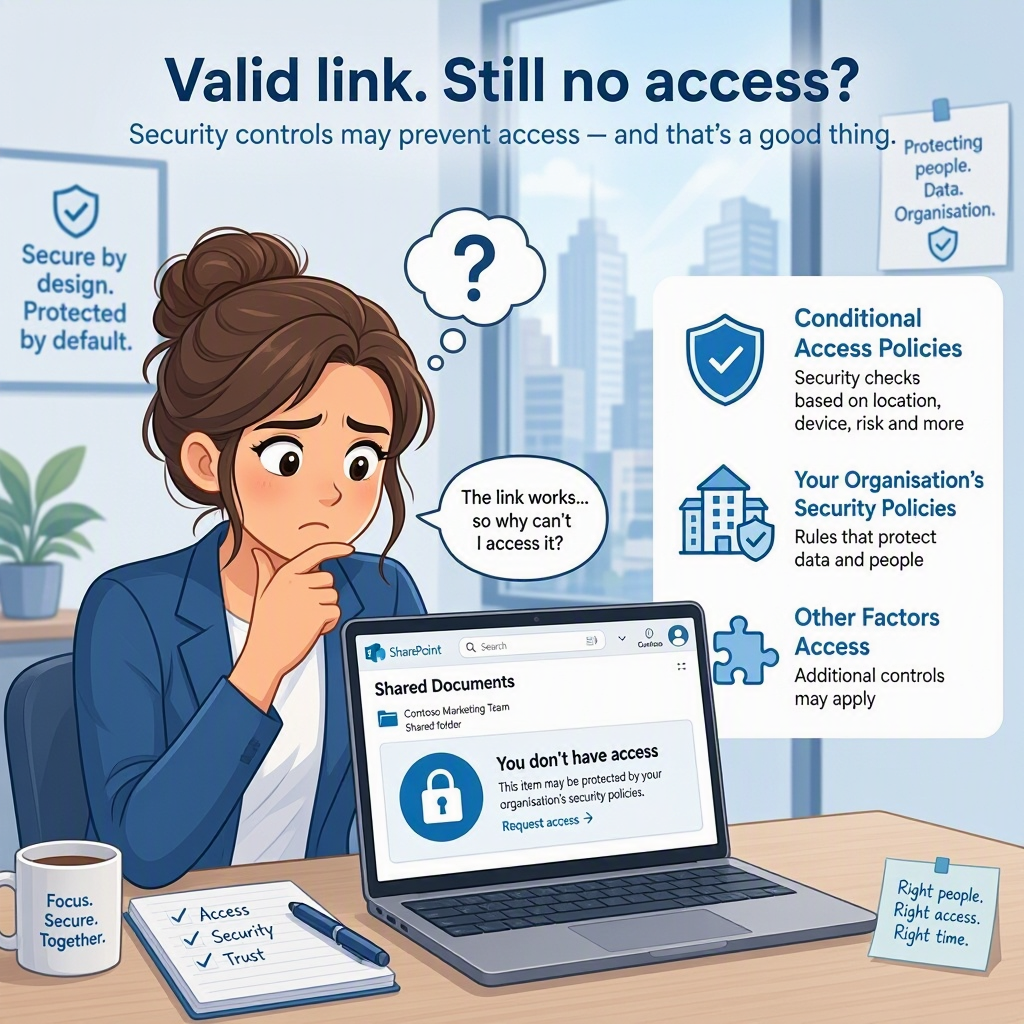
Conditional Access Policies
The organisation sharing the files may have policies that:
- Require MFA
- Block access from certain countries
- Block access from anonymous users
- Block access from high-risk sign-ins
- Restrict access from unmanaged devices
Your Own Organisation’s Security Policies
Your employer may prevent access to externally shared SharePoint resources through:
- Conditional Access policies
- Identity Protection policies
- Browser restrictions
- Endpoint security controls
Other Factors
Access may also be affected by:
- VPN services
- Starlink or other satellite internet providers allocating overseas IP addresses
- Browser sign-in conflicts
- Cached Microsoft credentials
- Signing in with the wrong Microsoft account
Tips for Smooth Access
To avoid the most common issues:
- Use the exact email address that received the sharing invitation
- Complete all MFA prompts when requested
- Sign out of any Microsoft accounts you are not using
- Open the link in a private browsing window if you use multiple Microsoft accounts
- Disable VPN software temporarily if permitted by your organisation
- Ensure your browser is up to date
Your Troubleshooting Checklist
Before reporting an issue, please try the following:
1. Confirm Your Email Address
Verify you are signing in with the exact email address the folder was shared to.
2. Open the Link in a Private Browser Window
This avoids conflicts with existing Microsoft sign-ins.
- InPrivate (Microsoft Edge) – recommended
https://support.microsoft.com/en-us/edge/browse-inprivate-in-microsoft-edge - Incognito (Google Chrome)
https://support.google.com/chrome/answer/95464?hl=en&co=GENIE.Platform%3DDesktop - Private Browsing (Firefox)
Private Browsing – Use Firefox without saving history | Firefox Help - Private Browsing (Safari)
Browse privately in Safari on Mac – Apple Support (UK)
3. Complete All Authentication Prompts
If Microsoft requests additional verification, complete every step before returning to the shared folder.
4. Try Another Browser
Testing in a different browser can quickly identify browser-related issues.
Still Having Problems ?

If access still does not work then please gather the following information:
- The email address you are signing in with
- The date and time of your access attempt
- Your physical location
- Whether you are using a VPN
- Screenshots of any error messages
- Details of any MFA prompts you received
Send this information to the person or organisation that shared the folder with you.
They can review the sharing settings and, if required, engage their IT support team for further investigation.
Frequently Asked Questions
Do I need a Microsoft 365 subscription?
No. You only need a Microsoft account that can complete Microsoft’s sign-in requirements.
Why does my colleague have access but I don’t?
Your account, device, browser session or organisation’s security policies may be different.
Why am I being asked to install Microsoft Authenticator?
Many organisations require MFA to protect sensitive business information.
Can the organisation sharing the folder bypass Microsoft’s security requirements?
No, the enhanced security requirements are controlled by Microsoft.
More Information:
For more information you can refer to these sites:
https://learn.microsoft.com/en-us/sharepoint/sharepoint-azureb2b-integration
https://learn.microsoft.com/en-us/sharepoint/faqs-odspintegrationwithentrab2b